

Most small businesses run on two systems: the digital one everyone intends to use and the physical pile that grows on the corner of the desk. Contracts get signed and filed in a drawer. Receipts get stuffed into an envelope. Vendor invoices stack up next to the printer. Then tax season or an audit arrives and you spend three days hunting for documents that should take three minutes to find.
Going paperless is not complicated. It is, however, easy to put off because it sounds like a big infrastructure project. It is not. You need two things: a reliable scanner that does not add friction to your day and a folder structure you will actually stick with. The Brother DS-740D handles the first part. This guide handles the second. Work through these five steps once and the paper problem disappears for good.
If your contracts and receipts are still in a drawer, that drawer is a liability.
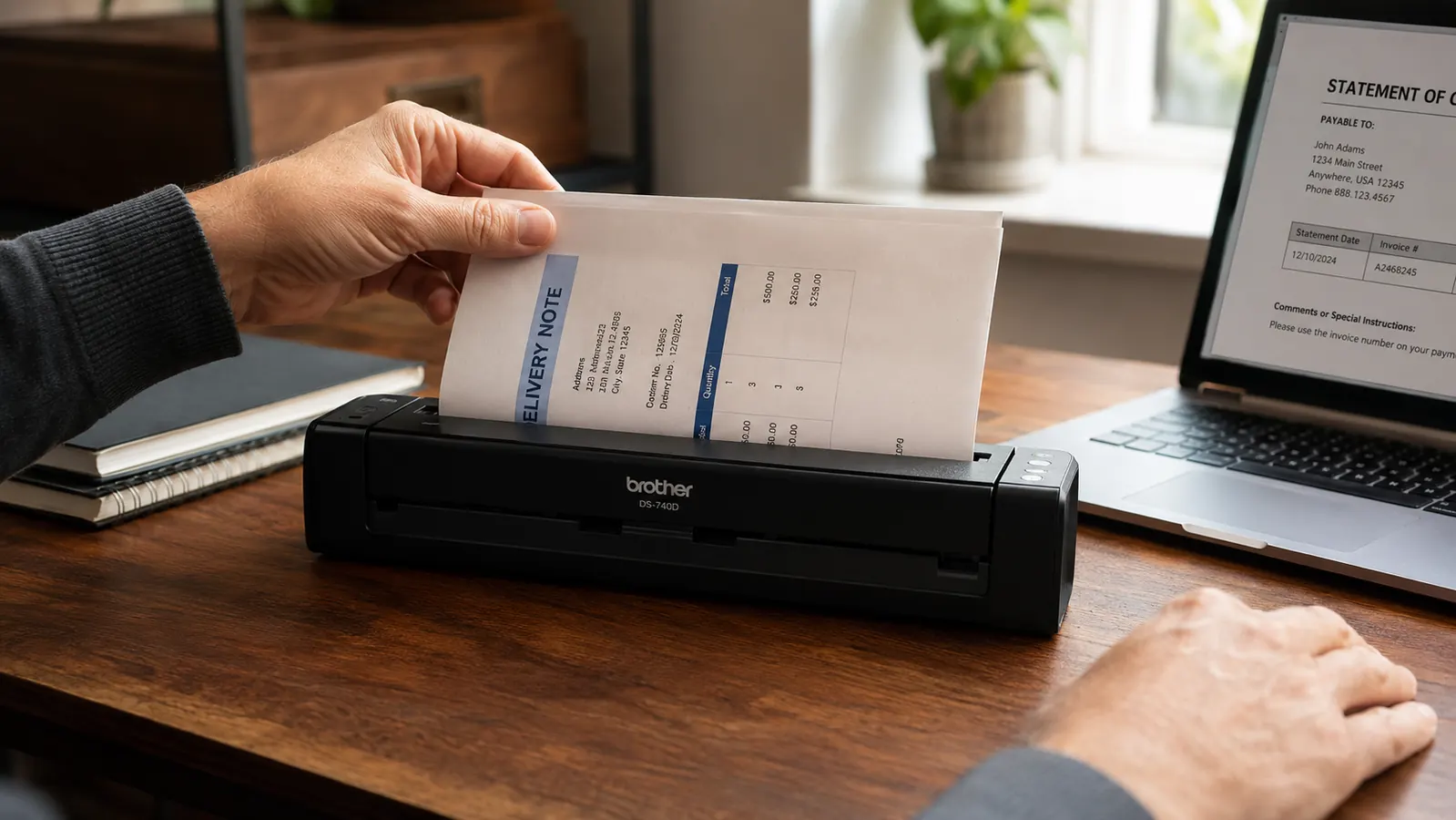
The Brother DS-740D scans both sides of a document in a single pass and fits in a laptop bag. For entrepreneurs who touch paper daily, it is the one hardware upgrade that pays for itself inside 30 days.
Amazon Check Today's Price on Amazon →Step 1: Audit Your Paper Before You Scan a Single Sheet
Scanning chaos into the cloud just creates digital chaos. Before you plug in the Brother DS-740D, spend 20 minutes sorting your existing paper into four piles: contracts and agreements, invoices and receipts, vendor records and W-9s, and everything else. The fourth pile is almost always the largest and the least important. Shred it.
The sorting step matters because it tells you your folder structure before you build it. If you run a service business, contracts will dominate. If you sell physical product, receipts and vendor records will. Knowing your document mix means your cloud folders reflect how you actually work, not how someone else thinks a business should work.
A practical rule: any document you would need in an IRS audit or a legal dispute earns a permanent folder. Everything else either gets a staging folder with a 90-day purge schedule or goes straight to the shredder. Being ruthless now saves you from maintaining a digital junk pile forever.
Step 2: Build Your Cloud Folder Structure Before You Scan
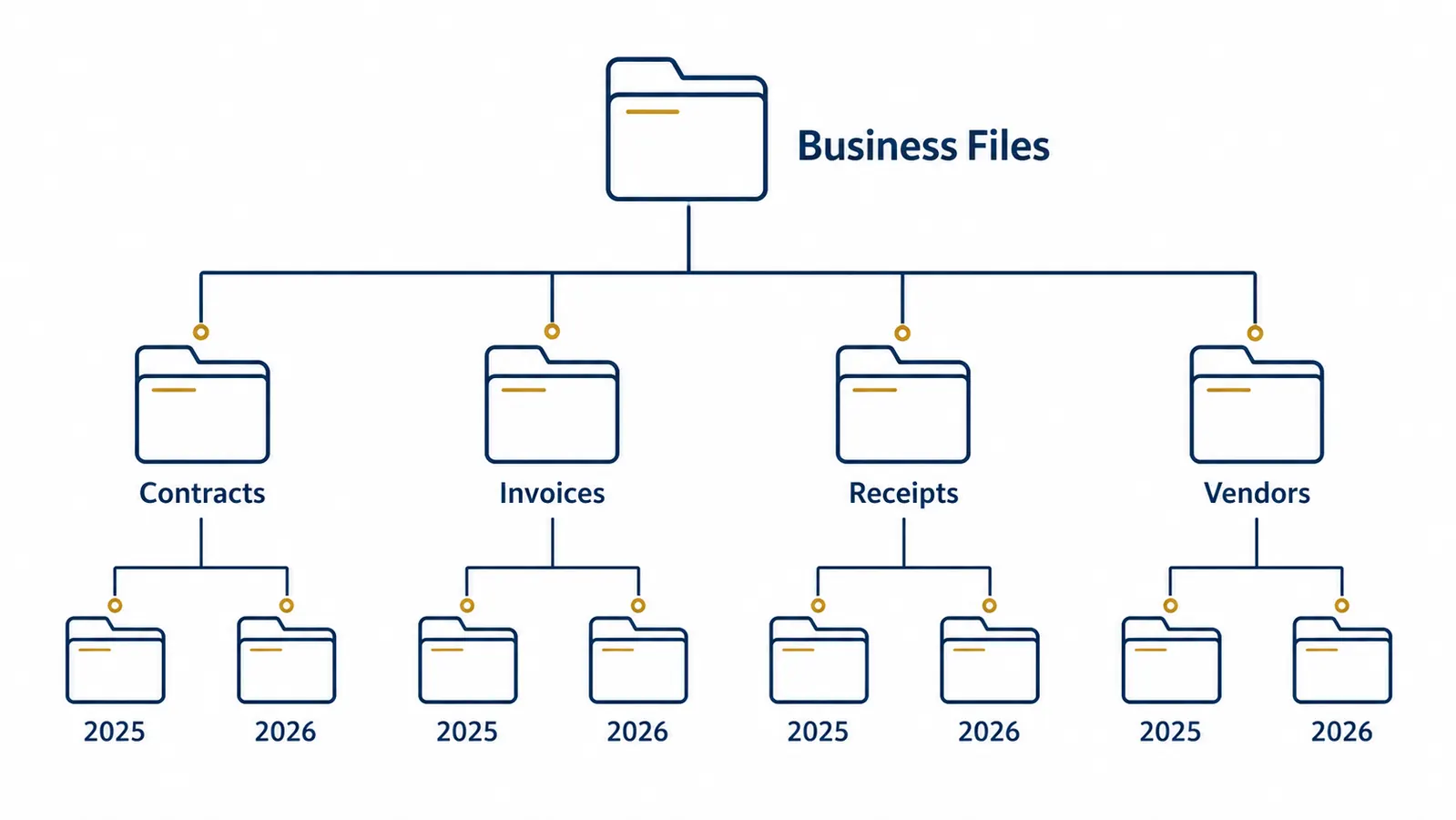
Pick one cloud storage platform and commit to it. Google Drive, Dropbox, or iCloud all work. The platform matters less than consistency. Create a top-level folder called something clear like Business Files or your business name, then build four subfolders: Contracts, Invoices, Receipts, and Vendors. Inside each, create year-based subfolders (2025, 2026) so future retrieval is immediate.
Naming convention for individual files is where most systems break down. A name like scan001.pdf is useless six months later. Use a pattern you can type without thinking: YYYY-MM-DD_description_party. For example, 2026-03-15_service-agreement_apex-media.pdf or 2026-04-02_receipt_staples-office-supplies.pdf. This format sorts chronologically by default in every file system and makes search instant.
A name like scan001.pdf is useless six months later. Build your naming convention before you scan the first document, not after.
If you use accounting software like QuickBooks or FreshBooks, check whether it has a document attachment feature. Many do. You can attach the scanned PDF directly to the corresponding transaction, which means your paper trail and your accounting records live in the same place. This alone cuts bookkeeping time significantly.
Step 3: Set Up the Brother DS-740D for Daily Use
The Brother DS-740D is a compact duplex mobile scanner, meaning it scans both sides of a page in a single pass rather than requiring you to flip documents manually. That distinction matters more than it sounds when you are processing a 20-page contract or a week of double-sided receipts. Setup takes about 10 minutes: plug it in via USB, download the Brother iPrint and Scan driver from Brother's support site, and run a test scan on a single sheet.
Configure your default scan settings once so you never have to think about them again. For standard business documents, 300 DPI is more than sufficient and keeps file sizes manageable. Set the default file format to PDF (not JPEG) because PDFs are searchable and preserve formatting. Enable auto-crop and auto-deskew so the scanner straightens and trims each scan automatically. The Brother software calls this feature Auto Page Size Detection. Turn it on.
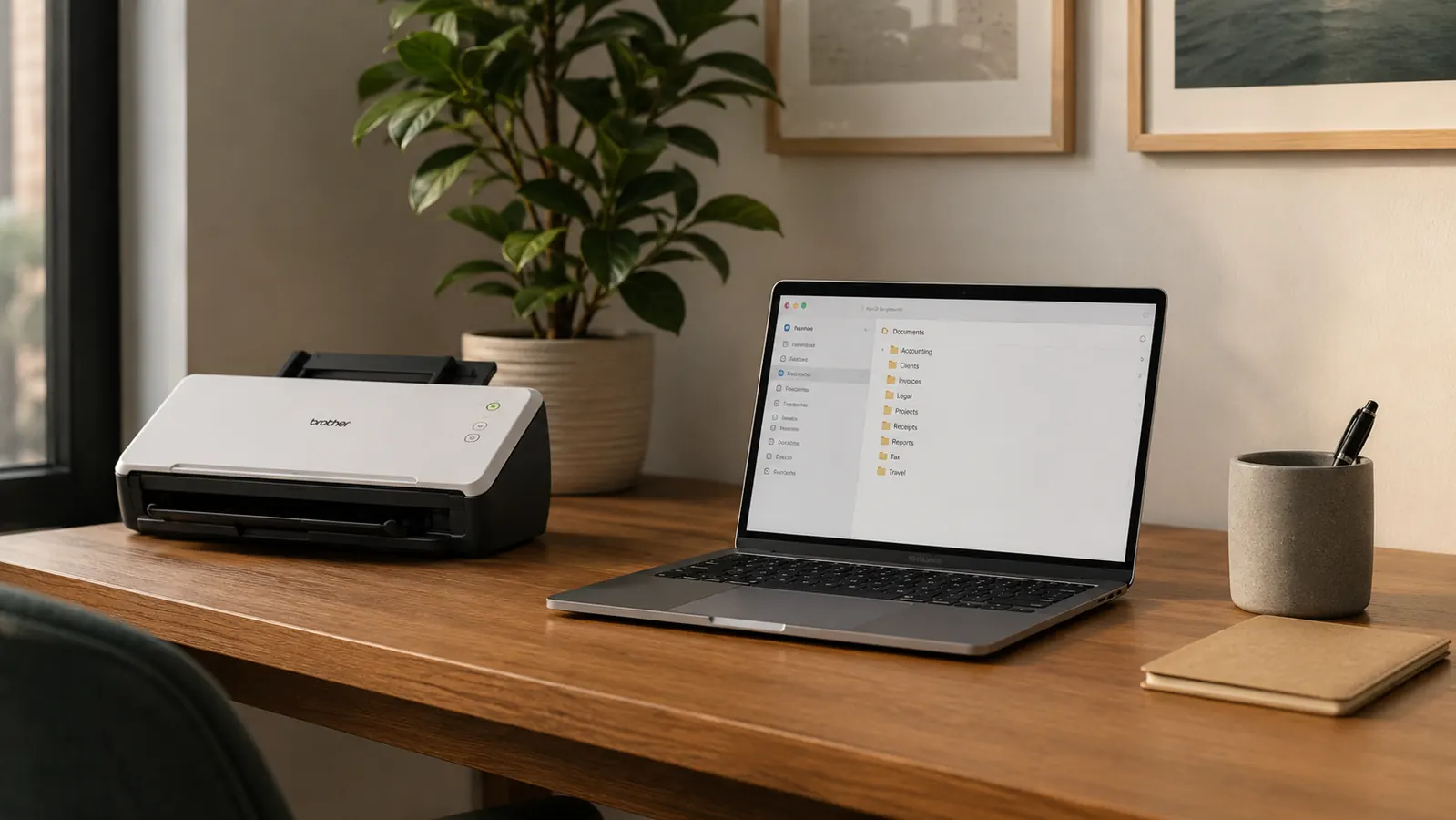
Position the scanner next to your laptop or at arm's reach from your desk. Placement is not trivial. If the scanner is in a closet or across the room, you will scan in batches instead of immediately, and batches become backlogs. The DS-740D is compact enough (roughly the size of a thick ruler) that it earns permanent desk real estate. Keep it plugged in and ready.
Step 4: Process Your Existing Paper Backlog in a Single Session
Block two to three hours on your calendar specifically for the backlog. This is not a background task. Sit down with your sorted piles, your folder structure open on screen, and your scanner running. Work through one category at a time: all contracts first, then invoices, then receipts, then vendors. Scan, name, drop into the correct folder. Do not stop to read documents or organize within a category. Move fast.
The Brother DS-740D scans at approximately 16 pages per minute for single-sided documents and 8 duplex pages per minute for two-sided. A 50-document backlog takes under 10 minutes of scanner time. Most of your session will be naming and filing, not scanning. That is normal and expected. The scanner is not the bottleneck. Your decisions about where things belong are.
Once a document is scanned, confirmed in the cloud folder, and named correctly, shred the original unless you have a legal reason to keep it. Most business documents do not require original paper retention. Consult your accountant if you are uncertain about tax records, but for the vast majority of contracts, invoices, and vendor correspondence, a properly named PDF in a backed-up cloud system is more durable than the paper version sitting in a filing cabinet.
Step 5: Build the Daily Habit That Keeps the System Clean
The backlog session gets you current. The daily habit keeps you there. The rule is simple: every piece of paper that enters your office gets scanned the same day or the next morning before you start work. Do not let paper sit for more than 24 hours. A receipt from a lunch meeting gets scanned before you leave the car. A signed contract that arrives by mail gets scanned the afternoon it lands.
Create a physical inbox tray for paper that genuinely needs physical handling before scanning, such as documents you still need to sign or invoices waiting on approval. Everything in that tray should be empty by Friday. If it is not, something is stuck in your workflow and needs attention. The tray is a pressure gauge, not a storage solution.
Once a month, open your cloud folder and do a 10-minute review. Check that the naming convention held, that documents landed in the right subfolder, and that nothing obvious is missing. This review takes less time than you think and prevents small lapses from becoming systemic ones. After 90 days, this scan-and-file routine will be automatic.
What Else Helps
A few additions that make the system more durable over time. First, enable two-factor authentication on whatever cloud storage platform you choose. Your scanned business documents are more sensitive than most people treat them. A contract containing client payment terms or a W-9 with a vendor's tax ID number does not belong in an unsecured account.
Second, consider a secondary backup. Cloud storage is reliable but not infallible. A monthly export of your Business Files folder to an external drive or a second cloud service costs almost nothing and guarantees you are never one account suspension away from losing your records. The Brother DS-740D produces standard PDFs that move cleanly across every platform.
Third, if you share the scanner with a business partner or an assistant, set up a shared scan-to-email folder so documents route to the same cloud destination regardless of who runs them. Brother's scanner software supports scan-to-folder and scan-to-email natively. Configure it once and the workflow holds whether you are in the office or not. For a deeper look at how the DS-740D performs in actual daily business use, see our full review of the Brother DS-740D over six months of operation. If you want the broader case for why a scanner belongs in every small business, the 10 reasons a document scanner transforms a small business covers the operational and financial arguments in detail.
The Brother DS-740D scans both sides in one pass and fits in a laptop bag. No excuses left.
4.3 stars across 2,353 reviews. Compact enough for any desk, fast enough for daily use. If you have been putting off going paperless, this is the scanner that removes every practical objection.
Amazon Check Today's Price on Amazon →